Getting Started
Klaar is a small task manager that lives in your Obsidian journal notes. Tasks stay plain Markdown checkboxes in your own notes. Link one to a day, week, month, quarter or year, and it shows up in that period’s journal note. Nothing is stored anywhere else.
Install
You need Obsidian 1.13.0 or newer. Klaar works on desktop and mobile.
- In Obsidian, open Settings → Community plugins → Browse.
- Search for Klaar, then install it and turn it on.
First steps
- Klaar looks for journal notes in a folder called
Daily. If yours live elsewhere, change Journal notes folder in Settings → Klaar. - The calendar opens in the right sidebar the first time Klaar runs. Click today to open today’s note. If it doesn’t exist yet, Klaar asks before creating it.
- In any note, write a task such as
- [ ] Call the plumber, type>at the end of the line and pick Tomorrow. - Click tomorrow in the calendar: the task is listed at the top of its note.
Scheduling
A scheduled task is an ordinary task line with a link to a period at the end. Klaar writes the link for you, but you can type it by hand too. Plan on whatever horizon fits: most things belong to a week, bigger things to a month or a year, and only a few to a specific day.
The > picker
On a task line, type > and pick when it’s due:
- Today, Tomorrow and the next seven days by name
- This week, Next week
- This month, Next month
- This quarter, This year
Keep typing to filter the list, for example >fri or >next. Typing a full key such as 2026-W45 offers that exact period. Klaar replaces the > with a link like >[[2026-10-23]] or >[[2026-W43]].
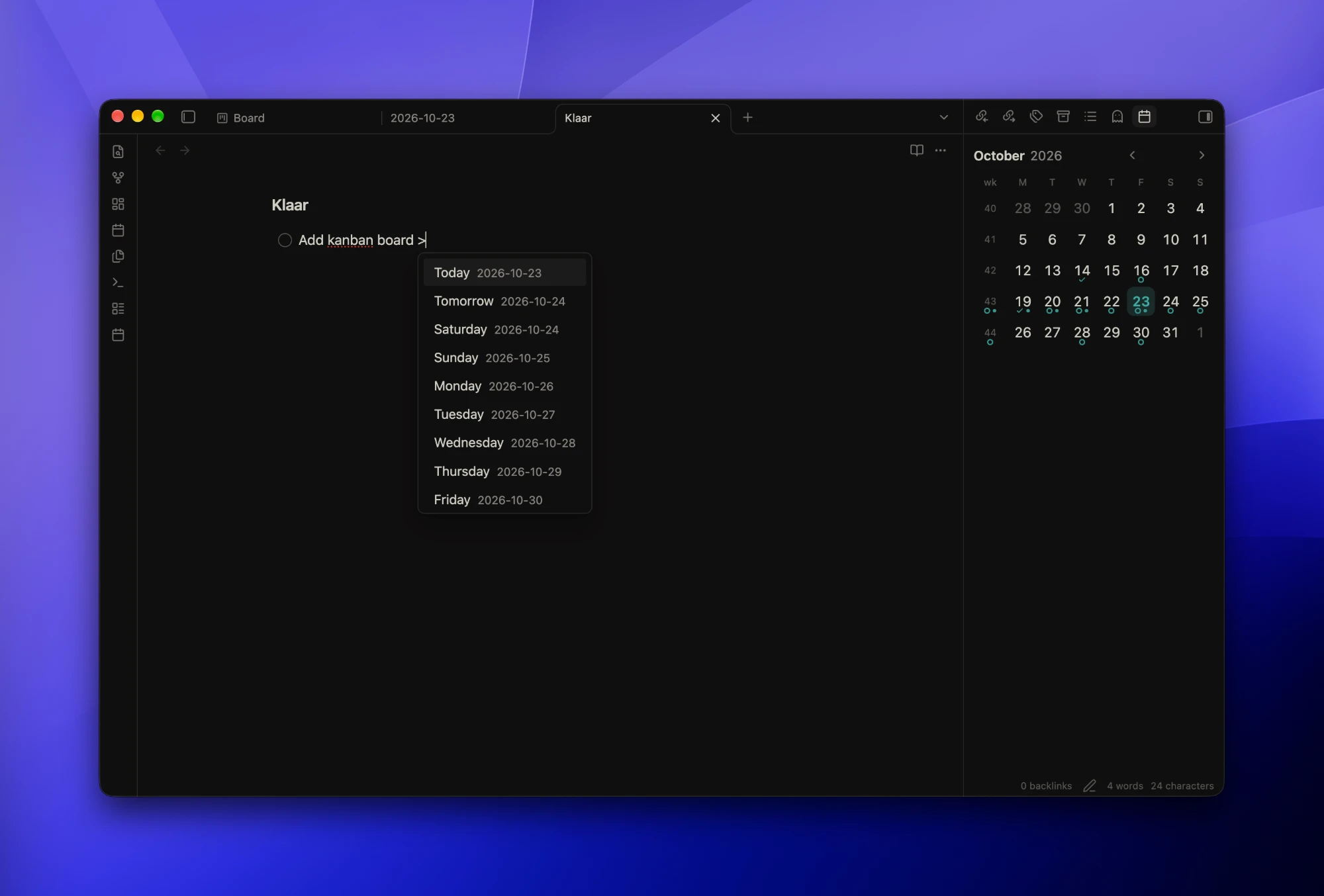
Schedule task…
Schedule task… opens the same list from the command palette or the editor’s right-click menu, and replaces the task’s existing link. To reschedule from elsewhere:
- Use the ⋯ menu on a task in a journal note, a Klaar Table or a Klaar Board (see Sending tasks on).
- Drag a task onto a day in the calendar.
- Drag a card to Today or This week on a board by date.
To put a task in a different note instead, use Move task to note… from the command palette or the right-click menu. Pick a note and Klaar moves the task, with its subtasks, to the end of it. To put it at the top instead (below any frontmatter), change New and moved tasks go at in Settings → Klaar; the same setting applies to Send task to…, Review overdue and the New task button in the Klaar Table and Board. Its schedule link stays as it is.
Sending tasks on
The ⋯ menu on a task offers Today, Tomorrow, This week, Next week, This month, Next month and Pick a date…, plus Move to note…, Someday and Cancel task. Send task to… does the same from the command palette or the right-click menu, for the task under the cursor or every task in a selection.
What happens depends on where the task lives:
- In a journal note, the task moves into the target note, with its subtasks, and loses its old
>link: the note it’s in is now its date. If that note doesn’t exist yet, Klaar creates it. - In any other note, such as a project note, the task stays where it is and gets a
>link to the new period, so the project keeps its tasks.
A notice says where the task went and has an Undo button. From the editor, ordinary undo brings the tasks back.
Move open tasks to… (command palette and the note’s ⋯ menu, in journal notes) moves every unfinished task in the note, with its subtasks, in one go. Use it to carry last week forward. Holding Alt (Option on a Mac) while dragging a task onto a calendar day also moves it into that day’s note, where a plain drag only reschedules it.
Review overdue
Review overdue tasks goes through your overdue tasks one at a time, oldest first, and sends each one on with a single key:
| Key | Does |
|---|---|
| T | Today |
| M | Tomorrow |
| W | This week |
| N | Next week |
| O | This month |
| X | Next month |
| D | Pick a date… |
| S | Someday |
| C | Cancel task |
| Enter | Skip |
| Backspace | Undo the last one |
Tasks move or get a new link by the same rule as the ⋯ menu. Run it from the command palette or the Review link at the right of the Overdue heading in today’s note.
Schedule keys
| Key | Period |
|---|---|
2026-10-19 |
day |
2026-W43 |
ISO week, starting Monday |
2026-10 |
month |
2026-Q4 |
quarter |
2026 |
year |
A task written straight into a journal note, without a > link, belongs to that note’s period. A task in Daily/2026-W43.md is a task for week 43.
Date chips
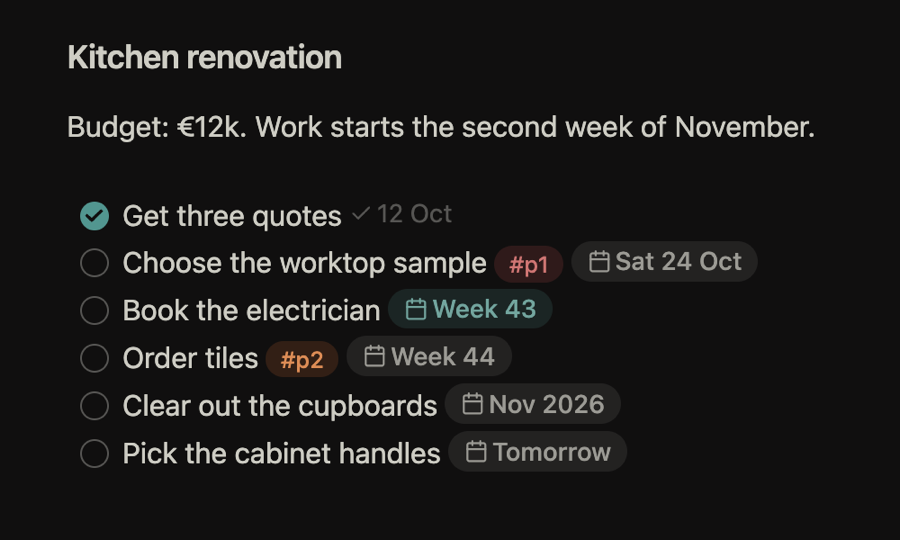
In live preview and reading mode, a schedule link reads as a chip: Today, Tomorrow, Yesterday, Fri 23 Oct, Week 43, Oct 2026, Q4 2026 or 2026. Days and weeks outside the current year get the year too.
- A red chip is an open task whose period has passed.
- An accent chip is an open task due in the current day, week, month, quarter or year.
- Hover a chip to see the raw date, and click it to open that period’s note.
- Put the cursor on it in live preview to edit the raw link.
Prefer the key itself? Set Schedule labels to Date as written in Settings → Klaar.
What still needs a date
Tasks without a link (and not in a journal note) are undated. To find them, make a Klaar Board with Columns set to Date: they sit in the Undated column. Drag a card to Today or This week to schedule it, or to Later to pick a date. In a Klaar Table, set the When filter to Undated.
Journal notes
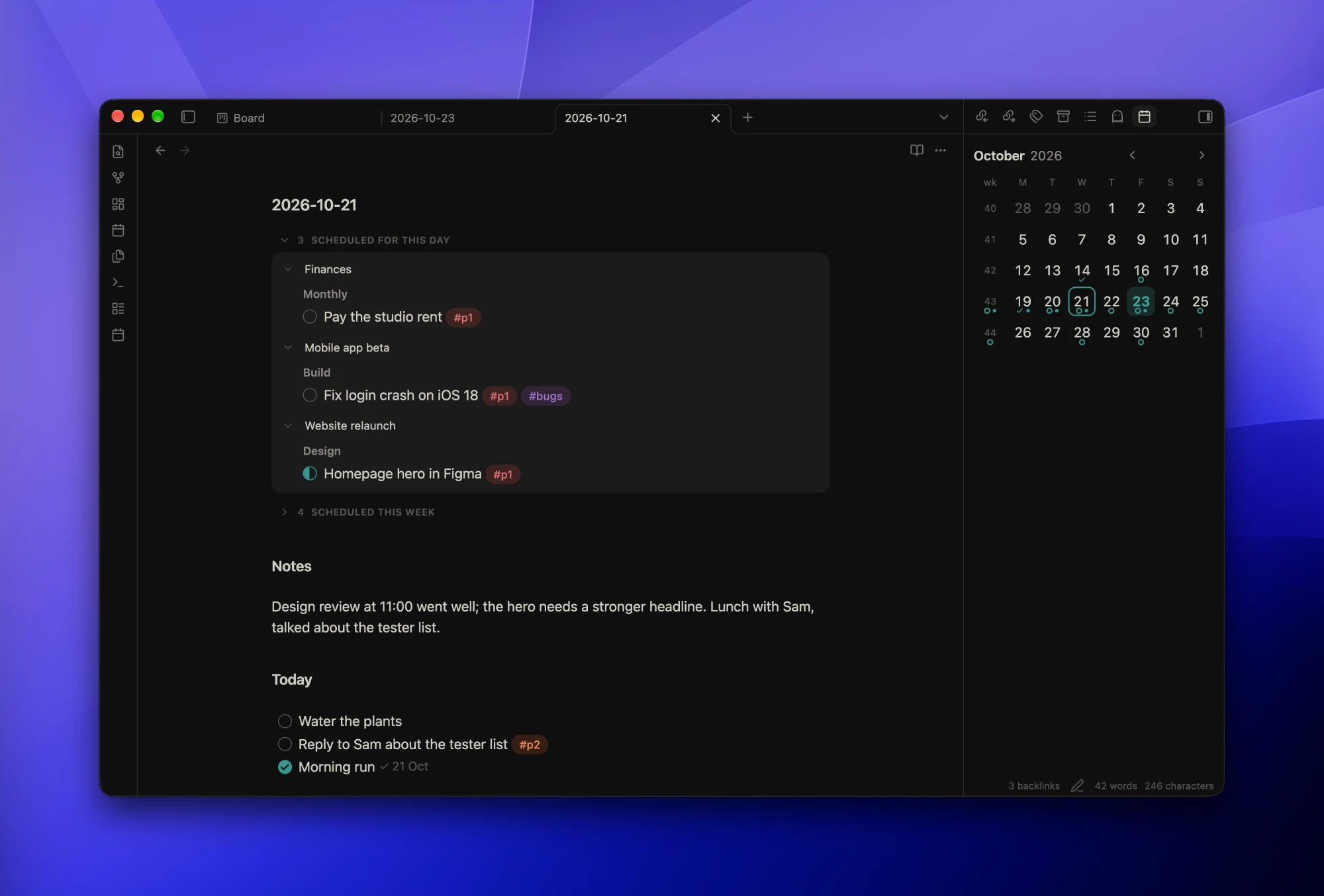
Journal notes are your day, week, month, quarter and year notes. When you open one, Klaar shows the tasks due in it above the note’s own text. Tasks cascade: a week note shows the month around it and the days inside it, so the bigger plans are there every time you plan.
Note names
Each note is named after its schedule key and lives in the journal notes folder (Daily by default):
Daily/2026-10-23.mdDaily/2026-W43.mdDaily/2026-10.mdDaily/2026-Q4.mdDaily/2026.md
When you open a note that doesn’t exist yet, Klaar asks before creating it. It starts empty, or from your template for that kind of note.
What a note shows
- Scheduled for today (or this day, this week, this month…): tasks linked to this note’s period.
- Scheduled this week (or this month, this year…): open tasks from the period around it, so today’s note shows what’s still due this week.
- The periods inside it: a week note lists each of its days, a month note each of its weeks. These start closed.
- Overdue: open tasks whose period has passed, on today’s note only.
Within each section, tasks are grouped by the note they live in, then by heading. The count next to a section is its open tasks. In a day note, tasks you’ve ticked move into a Done group at the bottom of the day’s list, closed to start, so you can look back on the day without it getting in the way.
Fold any section or group. Klaar remembers which sections you keep open, per kind of note, so all your day notes look the same.
Working from a note
- Tick a task and its line in its own note is updated, with the done date if that’s on.
- Click a task’s text to open its note at that line. The line flashes so you can find it.
- Click a note’s name to open the note. The arrow next to it folds the group.
- Cmd-click (Ctrl-click on Windows and Linux) opens a new tab.
Period types
Daily, weekly, monthly and yearly notes are on by default; quarterly is off. Turn any of them on or off under Settings → Klaar → Period types. A period type that’s off disappears from the scheduled sections, the calendar and the date picker. With weekly off, a day note shows “Scheduled this month” instead.
Templates
Each period type can have its own template: any note in your vault, picked under Settings → Klaar → Period types, just below its toggle. Whenever Klaar creates a note of that kind (from the calendar, when you send a task to a new week, or when you add a task from a base), the note starts with the template’s text. Notes that already exist are never changed.
Klaar fills in the same placeholders as Obsidian’s core Templates plugin:
| You write | It becomes |
|---|---|
{{title}} |
the note’s name, like 2026-W45 |
{{date}} |
the first day of the period, like 2026-11-02 for week 45 |
{{date:dddd D MMMM}} |
that day in your own format: Monday 2 November |
{{time}} |
the time the note was created, or {{time:FORMAT}} |
Anything else, like Templater’s <% %> code, stays as written. If Templater’s “Trigger on new file creation” is on, Templater fills it in.
If the template file has been moved or deleted, Klaar creates the note empty and tells you.
Planning a week
This is how I use it. On Monday I open the week note and decide what the week is really about. During the week, tasks come up everywhere: in meeting notes, in project notes, in a random idea. I write them down right there and send them to the week with >.
As the days go by, I pull tasks from the week into specific days. The bigger, vaguer things sit in the month or year note, and because they show up in the week note too, I see them every time I plan.
Each morning, today’s note shows what’s due today, what’s still open this week and anything overdue. When I want to know what still needs a date, I open a Klaar Board by date and drag cards from Undated to Today or This week.
Calendar
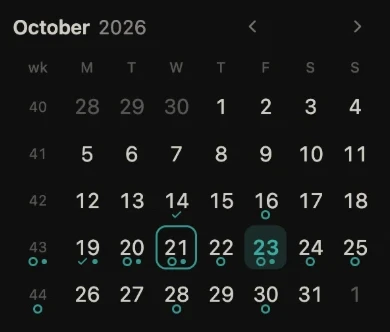
A month view in the sidebar, with ISO week numbers. It’s how you move between journal notes.
Opening it
The calendar opens in the right sidebar the first time Klaar runs. After that it stays wherever you put it, or closed if you close it. Bring it back with the Open calendar command or the calendar icon in the ribbon.
- Click a day or a week number to open its journal note.
- Click the month, year or quarter name at the top to open that note.
- The arrows move between months; Today jumps back to the current month.
- Cmd-click (Ctrl-click on Windows and Linux) opens the note in a new tab.
Markers
Under a day or a week number:
- A ring: open tasks are scheduled for it.
- A check: it had tasks, and all of them are done.
- A dot: its journal note exists.
Cancelled and someday tasks don’t count, and the markers follow as you tick tasks or create and delete notes.
Drag to reschedule
Drag a task from a journal note, a Klaar Table or a Klaar Board onto a day in the calendar. Klaar rewrites just that task’s > link.
Task syntax
Klaar reads ordinary Markdown tasks. Everything it understands is something you could type by hand.
Markers
| You write | It means |
|---|---|
- [ ] text |
to do |
- [x] text |
done |
- [/] text |
in progress |
- [>] text |
next |
- [<] text |
someday |
- [-] text |
cancelled |
- [?] text |
question (experimental) |
- [I] text |
idea (experimental) |
Any other marker, such as [!] or a lower-case [i], isn’t a Klaar task and is left alone.
- In progress
[/]: turn off Mark in progress with [/] to use a tag instead (see below). - Next
[>]: an open task to pick up next, with its own column on the board. -
Someday
[<]: parked. It leaves the scheduled sections, the calendar and the open-task filters until you bring it back. - Question
[?]and Idea[I](capital I): experimental, and off until you turn them on under Settings → Experimental. Like someday tasks, they stay out of the scheduled sections, Overdue, the calendar and the open-task filters. A Klaar Table finds them under Status → Questions or Ideas, and a status board gives each its own column. Tick one when it’s answered or done with; it becomes an ordinary[x]task.
Each of these can be turned off in settings. Klaar then leaves those lines alone.
A task nested under another task is a subtask. Subtasks show everywhere, and the Bases views can hide them with Show subtasks.
Done date
When you tick a task, Klaar adds ` (@done [[2026-10-23]])` to the line. Turn this off with Add done date. Under Done date you choose whether the stamp shows small and muted, as a chip, or hidden. The note text is the same either way.
Tags and priority
Tags listed in Settings → Klaar → Tags become coloured pills in the editor, in reading mode and in Klaar’s own views. Tags you haven’t listed keep your theme’s look. Each listed tag has a colour and a role:
| Tag | Colour | Role |
|---|---|---|
#p1 |
red | High priority |
#p2 |
orange | Medium priority |
#p3 |
yellow | Low priority |
#bugs |
purple | Label |
The roles are Label, High priority, Medium priority, Low priority and In progress. Add your own tags, change colours, or give a tag the In progress role so it marks a task in progress instead of [/].
Commands
| Command | What it does |
|---|---|
| Schedule task… | Schedule or reschedule the task under the cursor. |
| Move task to note… | Move the task under the cursor, with its subtasks, to the end or top of another note (see Settings). |
| Send task to… | Send the task under the cursor, or every task in a selection, to a day, week or month. In a journal note it moves there; elsewhere it gets a link. |
| Move open tasks to… | Move every unfinished task in a journal note, with its subtasks, to another period. |
| Review overdue tasks | Go through overdue tasks one at a time, one key each. |
| Toggle in progress | Switch between open and in progress. |
| Toggle next | Switch between open and [>]. |
| Toggle someday | Switch between open and [<]. |
| Toggle question | Switch between open and [?]; a plain line or bullet becomes a question task. Only while questions are turned on under Settings → Experimental. |
| Toggle idea | Switch between open and [I]; a plain line or bullet becomes an idea task. Only while ideas are turned on under Settings → Experimental. |
| Toggle cancelled | Switch between open and [-]. A done task loses its done stamp. Also in the right-click menu as Cancel task / Reopen task. |
| Cycle priority | Step #p3 → #p2 → #p1 → no priority. |
| Move done tasks to the bottom | Move every done task in the note, with its subtasks, under a ## Done heading at the bottom. Klaar adds the heading if the note has none. Klaar asks first. Also in the right-click menu and the note’s ⋯ menu. |
| Sort tasks | Put every task list in the note in order: in progress, next, to do, someday, questions, ideas, done, cancelled; priority tags, then schedule dates (earliest first), break ties. Subtasks move with their task. Klaar asks first. Also in the right-click menu and the note’s ⋯ menu. |
| Open calendar | Show the calendar in the sidebar. |
| Open today’s note | Open (or create) today’s note. Also for this week, this month, this quarter and this year, for the period types you use. |
| Open previous day’s note | Open the day before the journal note you have open, or yesterday from any other note. Open next day’s note goes the other way. Also for weeks, months, quarters and years. |
The toggles (cancelled included) and Cycle priority work on every task in a selection, as one undo step. Klaar sets no hotkeys of its own: give any of these one in Settings → Hotkeys. Each command has an icon, so the editing ones can go on the mobile toolbar too (Settings → Mobile).
Bases views
Klaar adds two views to Obsidian Bases. They show the tasks inside the notes a base matches, so a base filtered to a project folder or a tag gives you that project’s tasks. Klaar uses Bases’ own filters rather than a query language of its own.
Adding a view
Open or create a base, click the view menu and add a view of type Klaar Table or Klaar Board. Everything Klaar adds is under Configure view, and each view remembers its own choices.
Search and buttons
Both views have a bar at the top:
- A search box that filters by task text, tags and note names.
- A task count, which reads “12 of 40” while search or filters hide some.
- New task: adds
- [ ] your textto today’s note, creating the note if needed. It goes at the end of the note, or the top if you chose that in New and moved tasks go at. - Today: opens today’s note. The arrow next to it opens this week’s, this month’s, this quarter’s or this year’s note. Cmd/Ctrl-click opens a new tab.
On mobile the buttons show their icons only.
Turn off Show search to hide the bar.
Klaar Table
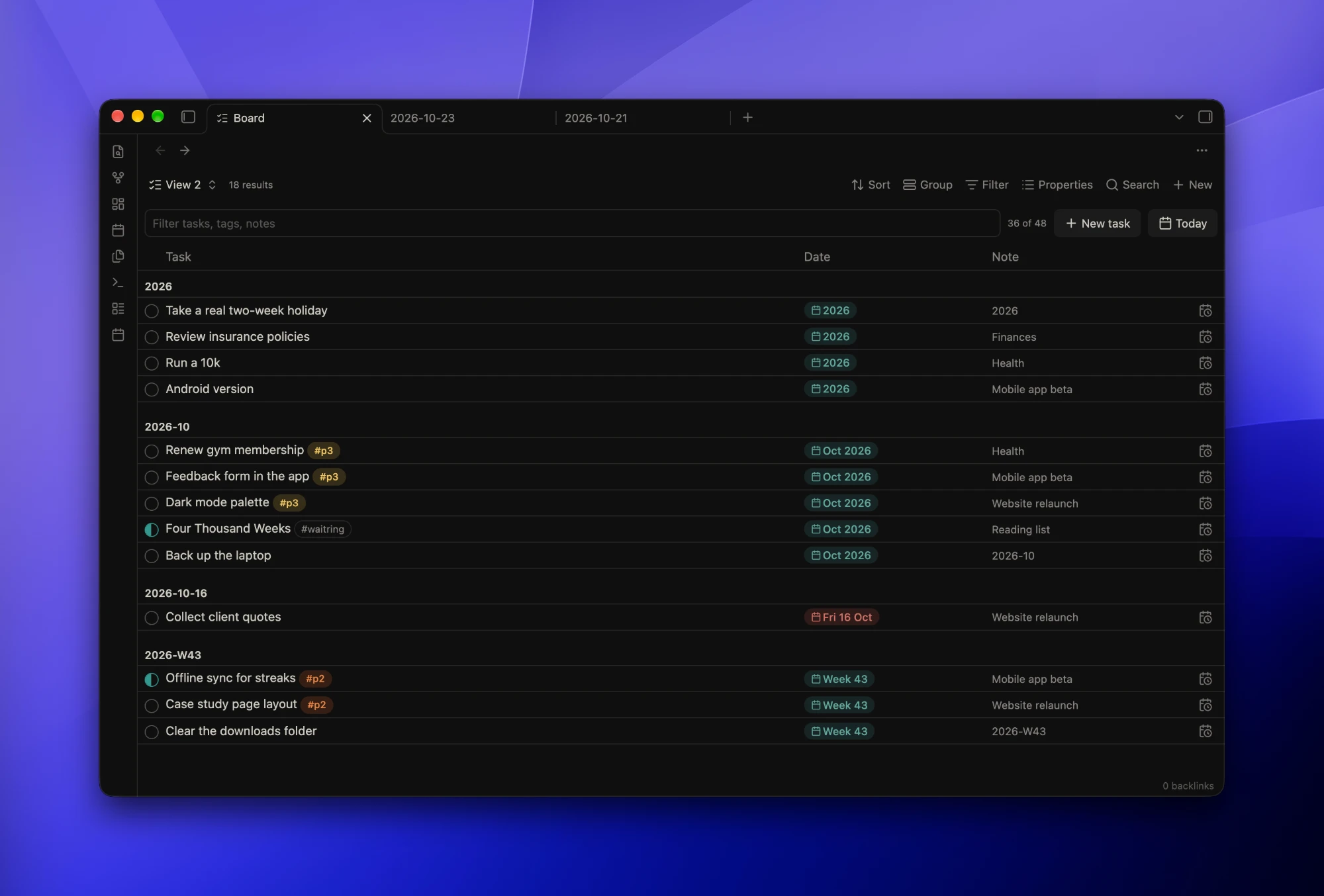
A table with the Task, Date and Note columns. Under Configure view:
- Columns: add Status, Priority, Tags or Heading. A Priority or Tags column takes those pills out of the task text.
- Filters: Status, When, Marker, Tag and Show subtasks. Status has Questions and Ideas too while those markers are on. Tag lists every tag on a task in your vault, so
#claudeshows only tasks tagged#claudeor a tag nested under it, like#claude/review. - Sort and group: sort by Date, Priority, Note or Task, Reverse sort, and group by date, note, priority, tag or not at all. Grouped by tag, a task with two tags shows under both, and untagged tasks come last under No tag.
The default sort is by date, with priority tasks first within each date. Tick a task, click its text to open it at its line, use the calendar button to reschedule it, or drag the row onto the calendar.
Klaar Board
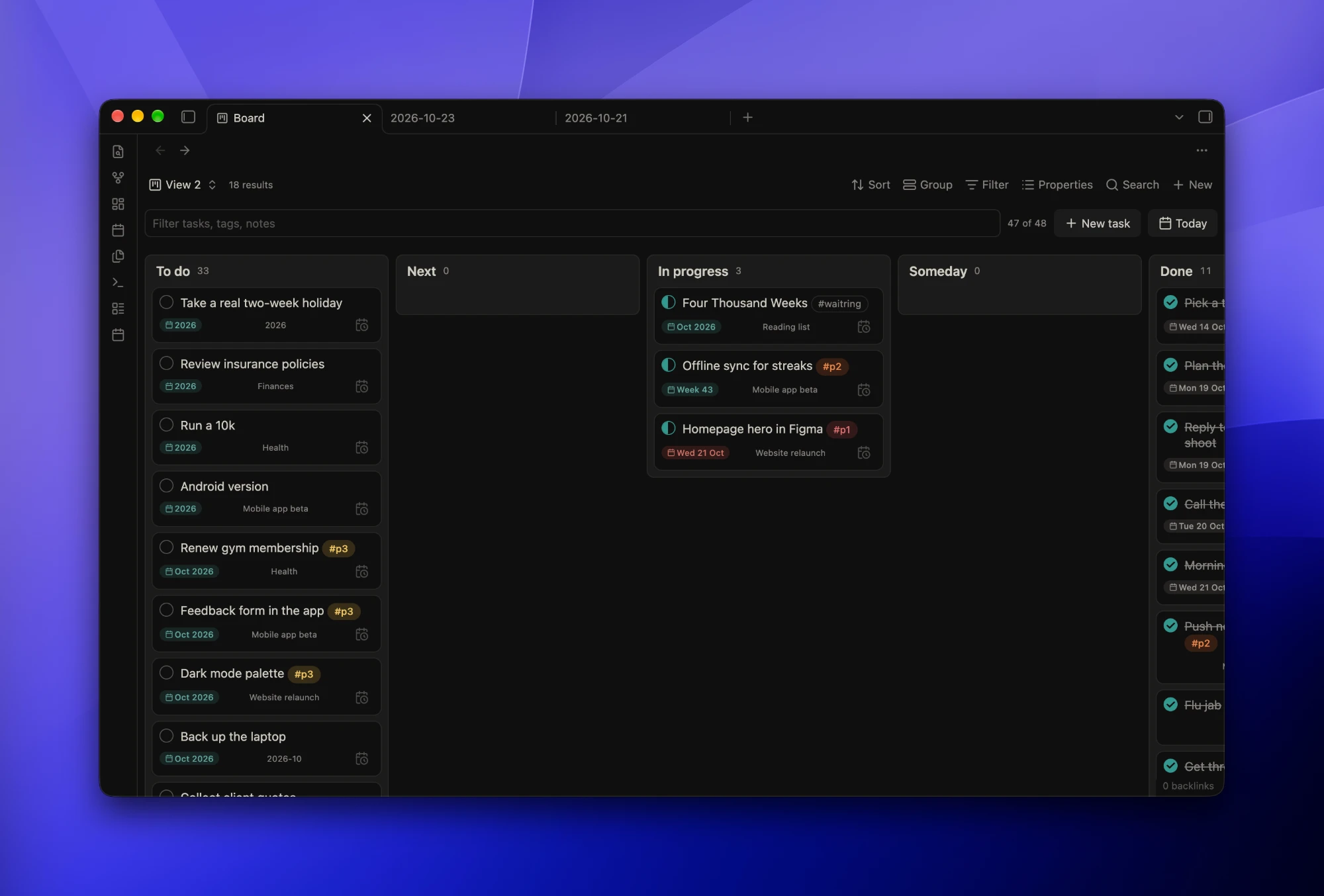
Columns of cards. Choose what the columns are under Configure view → Columns:
| Columns | The board shows |
|---|---|
| Status | To do, Next, In progress, any tag columns, Someday, Question and Idea (if turned on), Done |
| Priority | High, Medium, Low, No priority |
| Date | Overdue, Today, This week, Later, Undated |
Drag a card to another column and Klaar rewrites just that task’s line:
- Done ticks it, with the done date if that’s on. To do, Next, In progress, Someday, Question and Idea set its marker.
- A priority column swaps its priority tag.
- Today and This week set its link, Undated removes it, and Later opens the date picker. Overdue doesn’t take drops.
Cancelled tasks don’t show on the board. Also under Configure view: Show done (status board only), Column width, Rows, and the same filters (Tag included) and sort as the table.
Tag columns
On a board by status, Configure view → Tag columns lists your tags from Settings → Tags that have the Label role, such as #waiting or #blocked, each with a switch. Each tag you turn on gets its own column after In progress, in the order of your settings, so one board can have a Waiting column while another doesn’t. Drop a card on a tag column to add the tag; drop it on any other status column to remove it. If a task has more than one of the tags, the one listed first in settings wins.
Board rows
Configure view → Rows splits the board into bands by date, note, priority or tag, each with every column. A board by priority can’t have priority rows, and a board by date can’t have date rows. Click a row’s title to fold it away. Rows are only for looking: dragging a card to another row changes nothing, and dragging it to another column works as usual. A task with two tags shows in both tag rows.
Settings
Klaar settings
Under Settings → Klaar:
| Setting | Default |
|---|---|
| Journal notes folder | Daily |
| Add done date | on |
| Mark in progress with [/] | on |
| Mark next with [>] | on |
| Mark someday with [<] | on |
| New and moved tasks go at | The end of the note |
| Schedule labels | Friendly (Fri 23 Oct) |
| Done date | Small and muted |
| Tags | #p1, #p2, #p3, #bugs |
| Period types | Daily, Weekly, Monthly, Yearly on; Quarterly off |
| Period types: note templates | none: new notes start empty |
| Experimental: Questions with [?] | off |
| Experimental: Ideas with [I] | off |
Style Settings
With the Style Settings plugin installed, a Klaar section lets you change:
- Pill tint: how strongly a tag’s colour fills its pill.
- Text colour strength: how much of the tag’s colour goes into its text.
- Pill corner radius and Tag font weight.
- Overdue date and Current date: the date chip colours, for light and dark themes.
Themes
Klaar works with the default Obsidian theme and with Minimal, in light and dark mode. More themes will be tested over time. If something looks off in yours, please open an issue. With reduced motion turned on, nothing slides or fades.
All features
Scheduling
>date picker on any task line- Today, Tomorrow and the next seven days by name
- This week, Next week, This month, Next month, This quarter, This year
- Type a full key, like
2026-W45, to pick that exact period - Schedule task… from the command palette, the right-click menu or the note’s ⋯ menu
- Move task to note… moves a task and its subtasks to the end or top of another note
- ⋯ menu on every task: Today, Tomorrow, This week, Next week, This month, Next month, Pick a date…, Move to note…, Someday, Cancel task
- Tasks in journal notes move into the target note (created if missing); tasks in other notes get a link instead
- Send task to… for the task under the cursor or a whole selection
- Review overdue tasks: one task at a time, one key each, Backspace to undo
- Move open tasks to… carries a journal note’s unfinished tasks forward
- Drag a task onto a calendar day to reschedule it; hold Alt (Option) to move it into that day’s note
- Tasks in a journal note belong to that note’s period without a link
- Date chips: Today, Tomorrow, Yesterday,
Fri 23 Oct,Week 43,Oct 2026,Q4 2026,2026 - Red chips for overdue tasks, accent chips for the current period
- Hover a chip for the raw date, click it to open its note
- Date chips can show the date as written instead
Journal notes
- Day, week, month, quarter and year notes
- Tasks scheduled for the note’s period
- Tasks from the period around it (“Scheduled this week”)
- Tasks from the periods inside it, closed to start
- Overdue tasks on today’s note
- A Done group for the day’s ticked tasks
- Grouped by note, then by heading
- Open and closed sections are remembered
- Click a note’s name to open it, Cmd/Ctrl-click for a new tab
- Click a task to jump to its line, which flashes
- Tick a task to update its own note
- A schedule button on every task
- Asks before creating a missing note
- A template per period type for new notes
- Nothing is written into your notes
Calendar
- Month view in the sidebar with ISO week numbers
- Click a day, week, month, quarter or year to open its note
- Ring for open tasks, check when all are done, dot when a note exists
- Previous, next and Today buttons
- Opens by itself the first time, then stays where you put it
- Open calendar command and ribbon icon
- Open today’s note, Open this week’s note (and month, quarter, year) commands, ready for your hotkeys
- Open previous day’s note, Open next day’s note (and week, month, quarter, year), counting from the journal note you have open
- Works with the keyboard
Tasks
- In progress
[/], next[>], someday[<]and cancelled[-]; questions[?]and ideas[I]as an experimental option - Each extra marker can be turned off
- Someday tasks leave the scheduled lists and the calendar
- Done date stamp
(@done [[2026-10-23]]), shown muted, as a chip or hidden - Toggle in progress, Toggle next, Toggle someday, Toggle question, Toggle idea (while those are on), Toggle cancelled and Cycle priority commands; Cancel task in the right-click menu
- Move done tasks to the bottom gathers a note’s done tasks under
## Done, from the command palette or the right-click menu - Sort tasks orders each task list in a note by status, then priority, then date
- Commands work on every task in a selection
- Coloured tag pills in the editor, reading mode and Klaar’s views
- Tag roles: label, high, medium or low priority, in progress
- Links, bold, italic, highlights and code render in task text
- Subtasks are recognised
Bases views
- Klaar Table: Task, Date and Note columns
- Optional Status, Priority, Tags and Heading columns
- Filters: Status, When (Overdue, Today, This week, Undated), Marker, Tag, Show subtasks
- Sort by date, priority, note or task, reversed if you like
- Group by date, note, priority or tag
- Search tasks, tags and note names
- Task count, “n of m” while filtering
- New task button that adds to today’s note
- Today button that opens today’s note, with a menu for this week, month, quarter or year
- Icon-only buttons on mobile
- Klaar Board by status, priority or date
- Tag columns per board, like Waiting or Blocked
- Rows on the board by date, note, priority or tag
- Show or hide the Done column
- Adjustable column width
- Long columns show the first 100 cards
- Drag a card to change only its line
- Drag rows and cards onto the calendar
Everywhere
- Works on desktop and mobile
- Light and dark themes
- Respects reduced motion
- Style Settings: pill tint, text strength, corner radius, weight, date chip colours
- No network requests
More
FAQ
Why can’t I delete a task?
Klaar cancels tasks instead of deleting them, on purpose. Every change Klaar makes is a small rewrite of one line that you can undo, and nothing it does removes text from your notes. A cancelled task (- [-]) also stays in your journal as a record of what you dropped. Reopen task brings it back.
To delete a task for good, click its text to open the note at that line, then delete the line there, where Cmd-Z works as usual.
Will there be a calendar view for Bases?
Not yet. Rather than design its own, Klaar will wait for Obsidian to release an official calendar view for Bases and then build on it. The Klaar Board was made the same way: it follows the look and behaviour of Obsidian’s own board view, so it feels at home next to the rest of your vault. In the meantime, the calendar in the sidebar shows your scheduled tasks, and you can drag tasks from a Klaar Table or Board onto a day.
Roadmap
What’s planned next, in no particular order. Plans change, so nothing here has a date.
- Quick add. Add a task from anywhere, without opening a note first. Handy on mobile.
- Navigation from the ribbon. Jump to the previous or next day, week or month.
- Week strip. A compact seven-day agenda in the sidebar, next to the month calendar, with drag between days.
- Add tasks from other apps. An
obsidian://link so Shortcuts, Raycast and Alfred can send tasks in. - List view for Bases. A plain list next to the Klaar Table and Klaar Board.
- Import from other plugins. Bring tasks over from the Tasks plugin and similar.
Have an idea or a request? Open an issue.
Support
Klaar is free. If it helps you, you can buy me a coffee. Found a bug or something that looks off in your theme? Please open an issue.
Changes are listed in the changelog. Klaar is MIT licensed.